Whatsapp is one the most popular messages app for smartphone. Whatsapp
becomes most of addicted because of its amazing features like chatting,
calling, status, profile and many more. Whatsapp becomes famous after
android smartphones are commonly used worldwide. Android devices are
popular due to their amazing features and low cost. Android OS is based
on Linux and hardware independent due to this reason Android Apps are
compatible with different version of Android OS. Everyone use Android
Phone because of its features and huge marketplace like Google Play
Store. Where we can download apps and games according to different categories.
On Android devices we use various social messengers and social apps like
Whatsapp, Facebook, Hike etc to keep in touch with friends and
relative. From the list of all, whatsapp is at top. Whatsapp is was not
available on PC as software application but we can access it to know
check out how to install Whatsapp on PC. We
share text, audio, video, images etc with our friends create groups and
take enjoy of group chat etc. Dues to huge amount of personal data
sometimes it may got deleted. Due to these features Whatsapp become the most popular messenger. But
whatsapp don't have any online database and store media files into phone
storage. But the another serious problem faces by users of WhatsApp messenger is that, we can't share PDF, doc, ppt, apk, rar, Zip, xks files on whatsapp.
If you also want to know how to share these files data files on
whatsapp then do not worry because in this article we provide yosu a
trick to share zip, PDF and apk like files on whatsapp with your friends.
Method To Share Pdf, Doc, Apk, Zip Files On Whatsapp
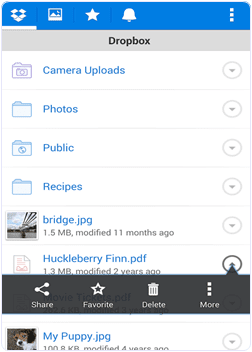
Step 1. You have to download the dropbox App first on your
Android device. You need a dropbox account if you already have a drop
account then no problem otherwise yo to create the account and login to
it.

Step 2. Download and install
CloudSend App to your device by clicking the button below. After
installation launch the App and go through it. This will ask you for
the authorization by the end. You have to allow all permissions to this
App.
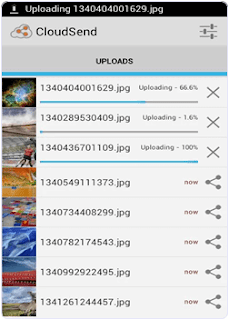
Step 3. After giving permission in our dropbox folder, a folder
is created automatically named cloudsend. Now you can close the App
after completing the authorization.
Step 4. If you want to send any type of file, hold the file through file manager and click the share button. Now you see a popup menu.
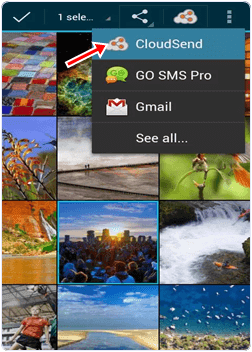
Step 5. From the popup menu press the Cloudsend option. Wait
until the selected file is uploaded on the cloudsend folder in dropbox.
The duration of uploading will depend on the size of file.
Step 6. Cloudsend App does not allow any restriction regarding the file size and provide two option after uploading the file copy and share. You can share the file or copy the link of any file.
Step 7. Now select share button option. By selecting this option
you will be able to share your file in different platform like Gmail,
Whatsapp, SMS, WeChat etc.
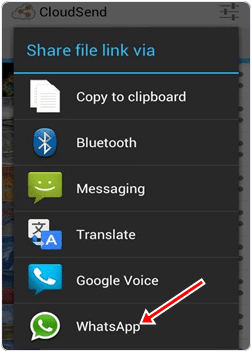
Step 8. Now choose Whatsapp option to share file with Whatsapp.
After selecting this option it will ask for the contacts with which you
want to share files. Share the link of file with your friends.
I hope you like this method to share zip, pdf, apk and other files on whatsapp.
To get new updates Like us on FaceBook


 If you using a laptop computer, you can easily find the service tag by turning the machine upside but for desktops, especially the older models, the sticker that holds




 In a recent guide I showed you how to "copy on a Samsung Galaxy S3" it now makes sense to show you how to use the copied text to paste it in an e-mail, a text or even a forum post.
 area (as you can see in the screenshot on the right). After holding your finger there for a second or two you will be given two options you can either "Paste" or "Clipboard". If you click "Paste" it will paste the last thing you selected to copy, if however you selected Clipboard you will be shown number of options from which to select.
 One of the great things about modern day smart phones is the ability to customise your phone exactly how you want it. You're not limited by just changing the background or the
  Firstly you need to open up your home screens and find an icon you want to move. For this example I will be selecting the icon for "Ebuddy XMS", which is sat on the bottom left corner of the 3rd home screen (See top left). To select the icon you need to hold your finger on the icon for a few seconds and this will then allow you to drag the icon around the screen.
 You can not only drag the icon around the same screen as it started on (see the picture on the right) but also place it on other screens by dragging the icon to edge of one of the screens. This allows you to drag the icon to any of the phone's home screens as you perhaps choose to put your most regularly used icons to the first screen whilst your lesser used icons can be put to the most distant homes screens.