Showing posts with label Tech. Show all posts

Saturday, August 22, 2015

How To Share Zip, Doc, Pdf, Apk Files On Whatsapp???

                 Whatsapp is one the most popular messages app for smartphone. Whatsapp becomes most of addicted because of its amazing features like chatting, calling, status, profile and many more. Whatsapp becomes famous after android smartphones are commonly used worldwide. Android devices are popular due to their amazing features and low cost. Android OS is based on Linux and hardware independent due to this reason Android Apps are compatible with different version of Android OS. Everyone use Android Phone because of its features and huge marketplace like Google Play Store. Where we can download apps and games according to different categories.
           On Android devices we use various social messengers and social apps like Whatsapp, Facebook, Hike etc to keep in touch with friends and relative. From the list of all, whatsapp is at top. Whatsapp is was not available on PC as software application but we can access it to know check out how to install Whatsapp on PC. We share text, audio, video, images etc with our friends create groups and take enjoy of group chat etc. Dues to huge amount of personal data sometimes it may got deleted.  Due to these features Whatsapp become the most popular messenger. But whatsapp don't have any online database and store media files into phone storage.  But the another serious problem  faces by users of WhatsApp messenger is that, we can't share PDF, doc, ppt, apk, rar, Zip, xks files on whatsapp. If you also want to know how to share these files data files on whatsapp then do not worry because in this article we provide yosu a trick to share zip, PDF and apk like files on whatsapp with your friends.

Method To Share Pdf, Doc, Apk, Zip Files On Whatsapp


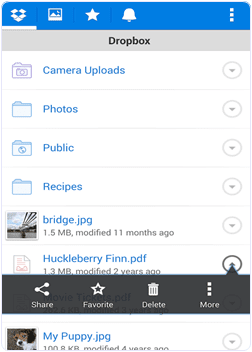
Step 1. You have to download the dropbox App first on your Android device. You need a dropbox account if you already have a drop account then no problem otherwise yo to create the account and login to it.

 https://play.google.com/store/apps/details?id=com.dropbox.android&hl=en
dropbox app preview
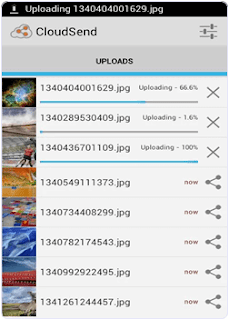
Step 2. Download and install CloudSend App to your device by clicking the button below. After installation launch the App and go through it. This will ask you for the authorization by the end. You have to allow all permissions to this App.
https://play.google.com/store/apps/details?id=com.ampelement.cloudsend&hl=en
upload images on cloudsend
Step 3. After giving permission in our dropbox folder, a folder is created automatically named cloudsend. Now you can close the App after completing the authorization.

Step 4. If you want to send any type of file, hold the file through file manager and click the share button. Now you see a popup menu.
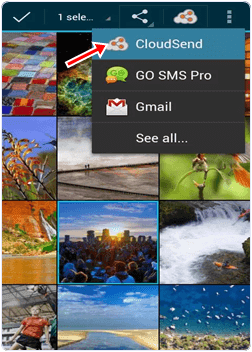
cloudsend file manager
Step 5. From the popup menu press the Cloudsend option. Wait until the selected file is uploaded on the cloudsend folder in dropbox. The duration of uploading will depend on the size of file.

Step 6. Cloudsend App does not allow any restriction regarding the file size and provide two option after uploading the file copy and share. You can share the file or copy the link of any file.

Step 7. Now select share button option. By selecting this option you will be able to share your file in different platform like Gmail, Whatsapp, SMS, WeChat etc.
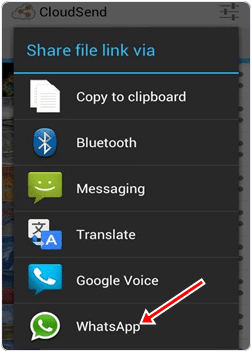
cloudsend whatsapp settings
Step 8. Now choose Whatsapp option to share file with Whatsapp. After selecting this option it will ask for the contacts with which you want to share files. Share the link of file with your friends. 


I hope you like this method to share zip, pdf, apk and other files on whatsapp. 

To get new updates Like us on FaceBook

Sunday, August 16, 2015

How-to-increase-internet-speed-by-using-Command Prompt?


increase internet speed

        Increase your internet speed by using command prompt. We know maximum computer user's major problem is slow internet access speed, and we are using many software and tricks to speed up our internet connection access speed.
So friends today I’m going to tell you a trick for increasing your internet speed by using command prompt (CMD).

 Check your Internet speed test on http://www.speedtest.net/ before starting this trick. Then again check your new internet speed and see the difference of this Great trick.


How to Speedup Internet connection using Command Prompt.

Follow below given step for increase you internet speed.
For windows user
Click on Start
Type cmd in Search program and files box (Click right click and Run cmd as Administrator)
Now command prompt will appear
In command prompt go to root directly "C:\" type cd C:\ )
Now type netsh interface tcp set global autotuning=disabled
Now press Enter button you have done it.
cmd trick for increase internet speed

Now please check the internet speed on http://www.speedtest.net/ and see the difference after trick and before trick.

To get new updates Like us on FaceBook

How To Archive Web Pages, Permanently?

          Web pages change or may even disappear with time. Thus if you would like to preserve a web page forever, you should either need to download that page to your computer (and put it on Dropbox) or you could use a web archiving service that will safely store a copy of that page on their own servers, permanently.
There are quite a few ways to save web pages permanently and your choice of the tool will depend on the kind of web content that you are trying to archive.
Archive Web Pages

Archive Web Pages, Permanently

If you are essentially interested in the saving text-only content, like news articles, Pocket and Instapaper are recommended choices. You can save pages via email, browser extensions, bookmarklets or through apps. These services extract the text content from a public web page and make it available on all your devices. However, there’s no option to download the saved articles, you can only read them on Pocket website or their mobile apps.
Evernote and OneNote are impressing tools for archiving web content in your own private notebooks. They provide web clippers (or extensions) that make it easy for you to save complete web pages – from tutorials to recipes to your online transactions receipts – with a click. The clipped web pages can be accessed from any device, the original layout is retained (mostly) and everything is searchable – these services can even perform OCR to find the text inside photographs. Evernote also lets your export these saved pages as HTML files that you can upload elsewhere.
If you prefer something quick and simple that works everywhere but doesn’t require extensions, you can consider saving web pages as PDF files. Google Chrome has a built-in PDF writer or you can use Google Cloud Print. It add a new “Save to Google Drive” virtual printer and the next time you print a page on our desktop or mobile through Cloud Print, it will save a PDF copy of the page directly in your Drive. This is however not the best choice for saving pages with complex formatting.
When the layout is important, your best bet is to use a screen capture tool. You’re obviously spoilt for choices here but I’d recommend the official Chrome add-onfrom Google – it will not only capture full-length screenshots of web page but it will also upload the image to your Google Drive in the same step. The add-on can also save web pages in the web archive (MHT) format that is natively supported in both IE and Firefox.
The Wayback Machine of the Internet Archive is a perfect place for finding previous versions of web pages but the same tool can be used to save any web page on-demand as well. Go to archive.org/web and enter the URL of any public web pages in the input box. The archiver will download a full copy of the page, including all the images and assets, on their server. It will make a permanent archive of the page that looks exactly like the original and will stay even if the original page goes offline.
Internet Archive doesn’t offer an option to download saved pages but Archive.Is can be a good alternative. It is very similar to archive.org in the sense that you enter the page URL and it will make an exact snapshot of the web page on their server. The page will be stored online forever but here you also have the option to download the saved page as a ZIP file. It too provides date based archives so you can have multiple snapshots of the same page for different days.
All popular web browsers provide an option to download a complete web page to your computer. It will download the HTML web page as well as the associated images, CSS and JavaScript to your computer so you can read it offline. You’ll however have to put effort in organizing these archives as the saved content may not be searchable through your desktop search programs.
eReader owners can use dotEPUB to download any web page as an ePUB or MOBI ebook, formats that are compatible with most readers. Amazon offers a Kindle add-on to help you save any web page in your Kindle device but, as with Pocket, these tools are primarily for archiving text based web content.
Most of the tools discussed above allow you to download a single page but if you wish to save a set of URLs in bulk, wget may be your savior. We also have a Google Script for downloading web pages to Drive automatically (like a cron job) but it will get the HTML content and nothing else.

Courtesy : labnol.org

To get new updates Like us on FaceBook

Friday, March 06, 2015

How to Remove Password from PDF Files with Google Chrome?

       
The bank sends me monthly credit card statements as password-protected PDF files mostly because they contain personal information. I archive these PDFs into Google Drive but, because these files are protected with a password, the text isn’t searchable inside Drive. Also, each PDF file has a different password so it’s impossible to remember them and takes just too much to find these PDFs later.

Removing Password from a PDF File

Since the Google Drive is already protected with 2 layers of security – password and 2-factor authentication – it should be OK if we remove the password protection from PDF files before uploading them to Drive.
Is there any software program available that can remove password protection from PDF files? One that doesn’t cost a dime and works on both Mac and Windows? Well the answer is yes and that too is already installed on your computer. It’s called Google Chrome.
Google Chrome has a built-in PDF reader* and a PDF writer and we can combine the two features to remove the password from any PDF document. Let’s see how:
  1. Drag any password protected PDF file into your Google Chrome browser. If you can’t find one, use this sample PDF file – the open password is “labnol” without the quotes.
  2. Google Chrome will now prompt you to enter the password of the file. Enter the password and hit Enter to open the file.
  3. Now go to the File menu in Google Chrome and choose Print (or press Ctrl+P on Windows or Cmd+P on Mac). Choose the destination printer as “Save as PDF” and click the Save button.
Google Chrome will now save the PDF to your desktop but without the password protection. 

Remove PDF Passwords without Chrome

If you are not a Google Chrome user, download this free Windows utility called BeCyPDFMetaEdit to remove passwords from PDF files.
First launch the program and it will ask your for the location of the PDF file. Before you select and open the PDF, change the mode to “Complete Rewrite,” then switch to the Security tab and set the “Security System” to “No encryption.” Click the Save button and your PDF will no longer require a password to open.

To get new updates Like us on FaceBook

Thursday, February 26, 2015

How To - Turn a Windows PC into a Wifi hot spot?


              Converting your desktop PC system into a Wi-Fi enabled system is a fairly simple process. With this method, you will be able to receive a wireless connection to your computer, enabling access to the Internet through your currently connected DSL or broadband connection in your home or office. To do this we can use Virtual Router Plus. Virtual Router Plus turns any Windows 7 and Windows 8 computer into a Wifi Hot Spot using Wireless Hosted Network technology.


What is Virtual Router Plus?

         Virtual Router Plus is a free, open source software  based router for PCs running Windows 7, Windows 8, Windows Server 2008 R2 and Windows Server 2012. Using Virtual Router Plus, users can wirelessly share any internet connection (Wifi, LAN, Cable Modem, Dial-up, Cellular, etc.) with any Wifi device (Laptop, Smart Phone, iPod Touch, iPhone, Android Phone, Zune, Netbook, wireless printer, etc.) These devices connect to Virtual Router just like any other access point, and the connection is completely secured using WPA2 (the most secure wireless encryption.)

Features

  • Works on Windows 8 and Windows 2012
  • No installation needed
  • Do not start background service so anything is under your control

To Setup Virtual Router Plus Software Watch below Video


To get new updates Like us on FaceBook

Friday, December 12, 2014

How to View YouTube Videos Offline on your Mobile?

             YouTube users in India rejoice. You can now download YouTube videos on your Android or iOS device using the official YouTube app itself and watch the videos later while you are offline or on a slow connection.

             It takes a few easy steps to download a video on the YouTube app. Open a video, tap the download button (see screenshot), choose the resolution for the downloaded video and it will begin to download on your device. There’s a new “Offline” section in the YouTube app where you can find a list of all videos that are currently in the download queue or available for offline watching.
Download YouTube Video

The offline feature is available on the YouTube app for both Android and iPhone. 
         That said, there are certain obvious limitations. One, not every video available on the YouTube website is available for download. The offline mode is mostly disabled for music videos and movies.
      Also, the downloaded videos can only be watched inside the YouTube app. I did some digging on Android and it turns out that YouTube saves the videos into smaller chunks as .exo files, a format that is not supported in other media players.

There are however no restrictions around the number of videos that you can take offline with the YouTube app, you are only limited by the free storage available on your iPhone or Android phone.


To get new updates Like us on FaceBook