Showing posts with label Internet Tips. Show all posts

Wednesday, February 15, 2017

How to Add Sites to Java Exceptions List?

The lack of a Java icon in your system preferences indicates that Java is not installed on the machine. You will need to manually install Java by going to Java.com

Error messages seen if the application's URL is not on the Exceptions list

If the application's URL is not added to the Java exception list, one or both of the following errors may be displayed:
  1. Java_error-app_cannot_be_run
  2. Java_error-blocked_by_settings

Error message seen if the port number is included in the application's URL

error: application blocked by Java security
This login error is displayed when the port number is included in the URL.

Setting the Java Security Level and adding the URL to the Exception List


  1. Go to the Java Control Panel:

    Windows version

    1. Go to the Control Panel from the Start menu.
    2. It may be necessary to switch the 'view by:' mode from 'Category' to 'Large Icons'. The 'view by:' mode is usually in the top right corner.
    3. Double-click on the Java icon to get the Java control panel dialog box.
      Note: It may be necessary to switch the 'view by:' mode from 'Category' to 'Large Icons'. The 'view by:' mode is usually in the top right corner.

    Apple version

    1. Click on the Apple icon (upper left corner).
    2. Click on 'System Preferences'.
    3. Click on the Java icon.
  2. Navigate to the Security Tab. If the 'Security Level' is set to 'Very High', reduce it to 'High'.
    Java_u51-security-1
  3. Press the 'Edit Site List' button to get the dialog that will allow you to add the application's URL to the Exception Site List. Press 'Add' to type in the URL.

    note: WAF users will need to update the URL to the Exception Site List by logging into the WAF and then going to: Start > Program Files > Java > Configure Java
  4. On the highlighted line (see arrow # 1), type the application's URL (see Java - Compatible Versions for UW Services for a list of URLs).
  5. Click the OK button (see arrow # 2).
  6. When done, the Java control Panel Security tab will look like the graphic in step 2 above if one does not enter any other Exception sites.
  7. After launching the application, the 'Do you trust' dialog boxes will still be displayed. To prevent this from happening each time, check the 'Always trust' boxes and click OK.   

To get new updates Like us on FaceBook

Sunday, August 16, 2015

How-to-increase-internet-speed-by-using-Command Prompt?


increase internet speed

        Increase your internet speed by using command prompt. We know maximum computer user's major problem is slow internet access speed, and we are using many software and tricks to speed up our internet connection access speed.
So friends today I’m going to tell you a trick for increasing your internet speed by using command prompt (CMD).

 Check your Internet speed test on http://www.speedtest.net/ before starting this trick. Then again check your new internet speed and see the difference of this Great trick.


How to Speedup Internet connection using Command Prompt.

Follow below given step for increase you internet speed.
For windows user
Click on Start
Type cmd in Search program and files box (Click right click and Run cmd as Administrator)
Now command prompt will appear
In command prompt go to root directly "C:\" type cd C:\ )
Now type netsh interface tcp set global autotuning=disabled
Now press Enter button you have done it.
cmd trick for increase internet speed

Now please check the internet speed on http://www.speedtest.net/ and see the difference after trick and before trick.

To get new updates Like us on FaceBook

How To Archive Web Pages, Permanently?

          Web pages change or may even disappear with time. Thus if you would like to preserve a web page forever, you should either need to download that page to your computer (and put it on Dropbox) or you could use a web archiving service that will safely store a copy of that page on their own servers, permanently.
There are quite a few ways to save web pages permanently and your choice of the tool will depend on the kind of web content that you are trying to archive.
Archive Web Pages

Archive Web Pages, Permanently

If you are essentially interested in the saving text-only content, like news articles, Pocket and Instapaper are recommended choices. You can save pages via email, browser extensions, bookmarklets or through apps. These services extract the text content from a public web page and make it available on all your devices. However, there’s no option to download the saved articles, you can only read them on Pocket website or their mobile apps.
Evernote and OneNote are impressing tools for archiving web content in your own private notebooks. They provide web clippers (or extensions) that make it easy for you to save complete web pages – from tutorials to recipes to your online transactions receipts – with a click. The clipped web pages can be accessed from any device, the original layout is retained (mostly) and everything is searchable – these services can even perform OCR to find the text inside photographs. Evernote also lets your export these saved pages as HTML files that you can upload elsewhere.
If you prefer something quick and simple that works everywhere but doesn’t require extensions, you can consider saving web pages as PDF files. Google Chrome has a built-in PDF writer or you can use Google Cloud Print. It add a new “Save to Google Drive” virtual printer and the next time you print a page on our desktop or mobile through Cloud Print, it will save a PDF copy of the page directly in your Drive. This is however not the best choice for saving pages with complex formatting.
When the layout is important, your best bet is to use a screen capture tool. You’re obviously spoilt for choices here but I’d recommend the official Chrome add-onfrom Google – it will not only capture full-length screenshots of web page but it will also upload the image to your Google Drive in the same step. The add-on can also save web pages in the web archive (MHT) format that is natively supported in both IE and Firefox.
The Wayback Machine of the Internet Archive is a perfect place for finding previous versions of web pages but the same tool can be used to save any web page on-demand as well. Go to archive.org/web and enter the URL of any public web pages in the input box. The archiver will download a full copy of the page, including all the images and assets, on their server. It will make a permanent archive of the page that looks exactly like the original and will stay even if the original page goes offline.
Internet Archive doesn’t offer an option to download saved pages but Archive.Is can be a good alternative. It is very similar to archive.org in the sense that you enter the page URL and it will make an exact snapshot of the web page on their server. The page will be stored online forever but here you also have the option to download the saved page as a ZIP file. It too provides date based archives so you can have multiple snapshots of the same page for different days.
All popular web browsers provide an option to download a complete web page to your computer. It will download the HTML web page as well as the associated images, CSS and JavaScript to your computer so you can read it offline. You’ll however have to put effort in organizing these archives as the saved content may not be searchable through your desktop search programs.
eReader owners can use dotEPUB to download any web page as an ePUB or MOBI ebook, formats that are compatible with most readers. Amazon offers a Kindle add-on to help you save any web page in your Kindle device but, as with Pocket, these tools are primarily for archiving text based web content.
Most of the tools discussed above allow you to download a single page but if you wish to save a set of URLs in bulk, wget may be your savior. We also have a Google Script for downloading web pages to Drive automatically (like a cron job) but it will get the HTML content and nothing else.

Courtesy : labnol.org

To get new updates Like us on FaceBook

Thursday, February 26, 2015

How To - Turn a Windows PC into a Wifi hot spot?


              Converting your desktop PC system into a Wi-Fi enabled system is a fairly simple process. With this method, you will be able to receive a wireless connection to your computer, enabling access to the Internet through your currently connected DSL or broadband connection in your home or office. To do this we can use Virtual Router Plus. Virtual Router Plus turns any Windows 7 and Windows 8 computer into a Wifi Hot Spot using Wireless Hosted Network technology.


What is Virtual Router Plus?

         Virtual Router Plus is a free, open source software  based router for PCs running Windows 7, Windows 8, Windows Server 2008 R2 and Windows Server 2012. Using Virtual Router Plus, users can wirelessly share any internet connection (Wifi, LAN, Cable Modem, Dial-up, Cellular, etc.) with any Wifi device (Laptop, Smart Phone, iPod Touch, iPhone, Android Phone, Zune, Netbook, wireless printer, etc.) These devices connect to Virtual Router just like any other access point, and the connection is completely secured using WPA2 (the most secure wireless encryption.)

Features

  • Works on Windows 8 and Windows 2012
  • No installation needed
  • Do not start background service so anything is under your control

To Setup Virtual Router Plus Software Watch below Video


To get new updates Like us on FaceBook

Friday, August 16, 2013

How To Use Internet From Pc To Android

           In my previous post I explained How To Share Android Mobile Internet On Pc. . So this post explaining about  How To Use Internet From Pc To Android  Most of us has internet on our home pc. We also has high speed internet on it at least better than mobile phone internet. Pc internet plans are cheaper than mobile phone internet plans if we compare the speed of both pc and mobile
internet speed. Almost we all are having GPRS/Edge/3g/Wi-Fi supported mobiles devices in our pocket. GPRs and Edge are cheapest way to connect your mobile with internet it cost 2$ a month at least in my city. But there is a problem with it it’s very slow we can’t download big files with it. if we reject them then 3G comes on our mind. 3G is the faster way to download huge file on mobile phone. But again one problem it’s expensive.
pc to android
There is no need to subscribe for mobile internet separately if you’re not on tour and enjoying your vacation out of town. There few ways to connect to internet without paying single penny for mobile internet. You can use your pc internet on your mobile phone. It’s very easy to share android device internet with pc. Don’t worry sharing pc internet with android device also easy.  But I think people still suffering to share pc internet with mobile phone. let me show you few ways to connect pc internet.

Share Pc Internet With Android Phone

Well right now there is only two ways to connect with pc internet Wi-Fi and USB. I know many people finding a way to share Pc internet to android via Bluetooth but they are not getting any success. You can only share your phone internet to PC but not opposite of it. Actually i am also trying to solve this puzzle. Whenever I get success i will share it with you guys.

Connect Via WiFi

Its the best way for non-root users and root users. Most of all android devices have Wi-Fi inbuilt. So you can simply create Wi-Fi hotspot and share your internet with your android device with it. If you don’t have Wi-Fi router in your pc then don’t disappoint you still can create Wi-Fi ad-hoc network and share LAN/wired internet via Wi-Fi without Wi-Fi router

Connect Via USB

This method only work for root users so if you want to use USB to get your pc internet in your android device you should root your android device before continuing this method.

  1. First setup your mobile go to Settings >> Applications >> Development >> USB Debugging and check. Your phone should be rooted and has Superuser installed. Just uncheck notification in Superuser app from Preferences >> Notifications and uncheck.
  2. Now install your mobile ADB driver. Just take out your phone battery and put it back and turn on your phone and connect to pc. But don’t mount your SD card. It will auto detect your mobile ADB driver if it’s not installed before. If your pc can’t recognize your ADB mobile driver just download and browse manually usb_driver.zip.
  3. Download Reverse Tethering 3.0.8 and Extract it.
  4. Run AndroidTool.exe and select device and DNS. If device not appears just click refresh. it will visible.
  5. Now click connect.
  6. Automatically usbtunnel app will be installed in your mobile and Superuser will ask permission just allow it and enjoy internet.
Note: There is newer version Reverse Tethering 3.8 working absolutely fine you won't get any problem. If you get any problem just click on debug tab it will tell you what to do and why it’s not working.

To get new updates Like us on FaceBook

Friday, September 21, 2012

Free Online Fax Service for Faxing Anywhere via Email and Web

send a fax onlinetpc logo
               
            Nowadays the usage of Fax machines at home and offices have significantly decreased. But at times you are forced to fax your personal documents, like for companies like paypal, CJ, etoro etc for verification procedures. And even if you rarely send documents over fax, there is no sense in buying a new fax machine for that matter. Today there are few online fax services which sends your documents over Fax for free.Let’s look into some of those online services which allows us to send fax via internet.


Free Fax Online Service for U.S and Canada

1)FaxZero :
Faxzero lets you send fax to any fax machine in the United states (U.S) and Canada for free.


Features of FaxZero
  • Free to use
  • Fax file Formats Supported : .DOC, .DOCX, or .PDF file.
  • Advertisement is shown only on the cover page.
Limitations : You can send only 2 free faxes per day and a maximum of 3 pages per fax.Limitations can only be avoided if you upgrade to their premium version.Also it is limited to US and Canada.
2)Efax :
Efax not a free service but allows a 30 day free trial.You can send fax online 50 pages and receiving up to 130 pages at no charge.You can both send and receive fax via email.


After clicking signup for a free 30 day trial, you will be asked to enter a zip code to find a local fax number.You can choose from three fax numbers.Select one and create your account by providing additional details.Log into your Efax account to send a fax via the Internet. Download and Install the "Efax Messenger" to your computer system and start sending fax online for free.
Features of Efax
  • Online storage space for your faxes for 1 year.
  • Receive up to 130 incoming fax pages per month for free.
  • Send and receive faxes as email attachments
  • File formats supported are PDF, TIFF or EFX plus many more.
  • Receive fax on multiple email accounts.
  • Allows you to fax from your mobile phone.

Email to Fax Online with No Restrictions Anywhere in the World

3)FreeFax :
With Freefax,you can send a fax to virtually any part of the world for free. Each fax that you send from freeFAX is routed through the tpc service and directed to the closest fax server to the recipient. The fax is usually sent within a few minutes but could take longer depending on fax traffic at the local fax server.

Registration is not required for sending free fax online but the advantages of being a member is that you can also receive fax via email, create custom fax sheets or group fax.

Other sites worth testing.

India Based Free Fax Services

4)Gujarat4u :
Gujarat4u is an India based company and allows to send free fax online in India. It claims to support instant free faxing to all over the world.
5)TPC Fax Service
TPC FAX claims to send fax from your web browser as well from your email client. You can check it’s coverage here.It can also deliver image attachments and rich text formatted messages on the recipient’s fax machine. If the email to fax service delivery fails for some reason, you get a failure notification via email.

Friday, September 14, 2012

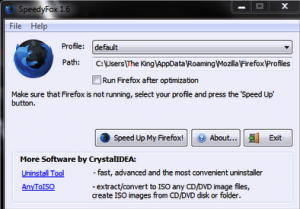
Increase Internet Speed with Firefox at any Network.

Increase Internet Speed at any Network like Aircel, Airtel, Tata Docomo, Reliance, Uninor, Vodafone etc. with Firefox plugin.
Just Follow the Steps:

Step 1 : 
Download Speedyfox

Step 2 : Run Speedyfox


Step 3 : Mark “Run Firefox After Optimization”


Step 4: If Firefox Running It Will Closed When You Click “Speed Up My Firefox”


Step 5 : It Take Few Seconds For Process


Enjoy High Speed Internet without extra plans!!!

Sunday, September 09, 2012

101 Google tips, tricks and hacks

101 Google tips, tricks and hacks
 
       Looking for the ultimate tips for Google searching? You've just found the only guide to Google you need. Let's get started:
1. The best way to begin searching harder with Google is by clicking the Advanced Search link.
2. This lets you search for exact phrases, "all these words", or one of the specified keywords by entering search terms into the appropriate box.
3. You can also define how many results you want on the page, what language and what file type you're looking for, all with menus.
4. Advanced Search lets you type in a Top Level Domain (like .co.uk) in the "Search within site of domain" box to restrict results.
5. And you can click the "Date, usage rights, numeric range and more" link to access more advanced features. 
6. Save time – most of these advanced features are also available in Google's front page search box, as command line parameters.
7. Google's main search invisibly combines search terms with the Boolean construct "AND". When you enter smoke fire – it looks for smoke AND fire.
8. To make Google search for smoke or fire, just type smoke OR fire
9. Instead of OR you can type the | symbol, like this: smoke | fire
10. Boolean connectors like AND and OR are case sensitive. They must be upper case.
11. Search for a specific term, then one keyword OR another by grouping them with parentheses, like this: water (smoke OR fire)
12. To look for phrases, put them in quotes: "there's no smoke without fire"
13. Synonym search looks for words that mean similar things. Use the tilde symbol before your keyword, like this: eggplant
14. Exclude specific key words with the minus operator. new pram -ebay excludes all results from eBay.
15. Common words, like I, and, then and if are ignored by Google. These are called "stop words".
16. The plus operator makes sure stop words are included. Like: fish +and chips
17. If a stop word is included in a phrase between quote marks as a phrase, the word is searched for.
18. You can also ask Google to fill in a blank. Try: Christopher Columbus discovered *
19. Search for a numerical range using the numrange operator. For example, search for Sony TV between £300 and £500 with the string Sony TV £300..£500
20. Google recognises 13 main file types through advanced search, including all Microsoft Office Document types, Lotus, PostScript, Shockwave Flash and plain text files.
21. Search for any filetype directly using the modifier filetype:[filetype extension]. For example: soccer filetype:pdf
22. Exclude entire file types, using the same Boolean syntax we used to exclude key words earlier: rugby -filetype:doc
23, In fact, you can combine any Boolean search operators, as long as your syntax is correct. An example: "sausage and mash" -onions filetype:doc
24. Google has some very powerful, hidden search parameters, too. For example "intitle" only searches page titles. Try intitle:herbs
25. If you're looking for files rather than pages – give index of as the intitle: parameter. It helps you find web and FTP directories.
26. The modifier inurl only searches the web address of a page: give inurl:spices a go.
27. Find live webcams by searching for: inurl:view/view.shtml
28. The modifier inanchor is very specific, only finding results in text used in page links. 
29. Want to know how many links there are to a site? Try link:sitename – for example link:www.mozilla.org
30. Similarly, you can find pages that Google thinks are related in content, using the related: modifier. Use it like this: related:www.microsoft.com
31. The modifier info:site_name returns information about the specified page.
32. Alternatively, do a normal search then click the "Similar Pages" link next to a result.
33. Specify a site to search with the site: modifier – like this: search tips site:www.techradar.com
34. The above tip works with directory sites like www.dmoz.org and dynamically generated sites.
35. Access Google Directory – a database of handpicked and rated sites – at directory.google.com 
36. The Boolean operators intitle and inurl work in Google directory, as does OR.
37. Use the site: modifier when searching Google Images, at images.google.com. For example: dvd recorder site:www.amazon.co.uk
38. Similar, using "site:.com" will only return results from .com domains.
39. Google News (news.google.com) has its own Boolean parameters. For example "intext" pulls terms from the body of a story.
40. If you use the operator "source:" in Google News, you can pick specific archives. For example: heather mills source:daily_mail
41. Using the "location:" filter enables you to return news from a chosen country. location:uk for example.
42. Similarly, Google Blogsearch (blogsearch.google.com) has its own syntax. You can search for a blog title, for example, using inblogtitle:<keyword>
43. The general search engine can get very specific indeed. Try movie:<name of film> to look for movie reviews.
44. The modifier film: works just as well!
45. Enter showtimes and Google will prompt you for your postcode. Enter it and it'll tell you when and where local films are showing.
46. For a dedicated film search page, go to www.google.co.uk/movies
47. If you ticked "Remember this Location" when you searched for show times, the next time you can enter the name of a current film instead.
48. Google really likes movies. Try typing director: The Dark Knight into the main search box.
49. For cast lists, try cast: name_of_film
50. The modifier music: followed by a band, song or album returns music reviews.
51. Try searching for weather London – you'll get a full 4-day forecast.
52. There's also a built-in dictionary. Try define:<word> in the search box.
53. Google stores the content of old sites. You can search this cache direct with the syntax keyword cache:site_url
54. Alternatively, enter cache:site_url into Google's search box to be taken direct to the stored site.
55. No calculator handy? Use Google's built in features. Try typing 12*15 and hitting "Google Search".
56. Google's calculator converts measurements and understands natural language. Type in 14 stones in kilos, for example.
57. It does currency conversion too. Try 200 pounds in euros
58. If you know the currency code you can type 200 GBP in EUR instead for more reliable results.
59. And temperature! Just type: 98 f to c to convert Fahrenheit to Centigrade.
60. Want to know how clever Google really is? Type 2476 in roman numerals, then hit "Google Search"...
61. You can personalise your Google experience by creating a Google account. Go to www.google.com/account/ then click "Create Account".
62. With a Google account there are lots more extras available. You'll get a free Gmail email account for one...
63. With your Google account, you can also personalise your front page. Click "iGoogle" to add blog and site feeds.
64. Click "Add a Tab" in iGoogle to add custom tabs. Google automatically populates them with suitable site suggestions.
65. iGoogle allows you to theme your page too. Click "Select Theme" to change the default look.
66. Some iGoogle themes change with time..."Sweet Dreams" is a theme that turns from day to night as you browse.
67. Click "More" under "Try something new" to access a full list of Google sites and new features.
68. "Custom Search" enables you to create a branded Google search for your own site.
69. An active, useful service missing from the list is "Personalised Search" – but you can access it via www.google.com/psearch when you're logged in.
70. This page lists searches you have recently made – and is divided into categories. Clicking "pause" stops Google from recording your history.
71. Click "Trends" to see the sites you visit most, the terms you enter most often and links you've clicked on!
72. Personalised Search also includes a bookmark facility – which enables you to save bookmarks online and access them from anywhere.
73. You can add bookmarks or access your bookmarks using the iGoogle Bookmarks gadget.
74. Did you know you can search within your returned results? Scroll down to the bottom of the search results page to find the link. 
75. Search locally by appending your postcode to the end of query. For example Indian food BA1 2BW finds restaurants in Bath, with addresses and phone numbers!
76. Looking for a map? Just add map to the end of your query, like this: Leeds map
77. Google finds images just as easily and lists them at the top, when you add image to the end of your search.
78. Google Image Search recognises faces... add &imgtype=face to the end of the returned URL in the location bar, then hit enter to filter out pictures that aren't people.
79. Keeping an eye on stocks? Type stocks: followed by market ticker for the company and Google returns the data from Google Finance.
80. Enter the carrier and flight number in Google's main search box to return flight tracking information.
81. What time is it? Find out anywhere by typing time then the name of a place.
82. You may have noticed Google suggests alternate spellings for search terms – that's the built in spell checker! 
83. You can invoke the spell checker directly by using spell: followed by your keyword.
84. Click "I'm Feeling Lucky" to be taken straight to the first page Google finds for your keyword.
85. Enter a statistics-based query like population of Britain into Google, and it will show you the answer at the top of its results.
86. If your search has none-English results, click "Translate this Page" to see it in English.
87. You can search foreign sites specifically by clicking "Language Tools", then choosing which countries sites to translate your query to.
88. Other features on the language tools page include a translator for blocks of text you can type or cut and paste.
89. There's also a box that you can enter a direct URL into, translating to the chosen language.
90. Near the language tools link, you'll see the "Search Preferences". This handy page is full of secret functionality.
91. You can specify which languages Google returns results in, ticking as many (or few) boxes as you like.
92. Google's Safe Search protects you from explicit sexual content. You can choose to filter results more stringently or switch it off completely.
93. Google's default of 10 results a page can be increased to up to 100 in Search Preferences, too.
94. You can also set Google to open your search results in a new window.
95. Want to see what others are searching for or improve your page rank? Go to www.google.com/zeitgeist
96. Another useful, experimental search can be found at www.google.com/trends – where you can find the hottest search terms.
97. To compare the performance of two or more terms, enter them into the trends search box separated by commas.
98. Fancy searching Google in Klingon? Go to www.google.com/intl/xx-klingon
99. Perhaps the Swedish chef from the muppets is your role model instead? Check www.google.com/intl/xx-bork
100. Type answer to life, the universe and everything into Google. You may be surprised by the result...
101. It will also tell you the number of horns on a unicorn

Monday, June 04, 2012

Share files of any Size Online using ‘PipeBytes’ easily

PipeBytes is an online file transfer service which allows you to send the files of any size such as: send music, movies, presentations or any other files.
It doesn’t need any account creation or sign-up is required, simply open it in browser and enjoy using the service. Upload file and take the code or URL, send to your friend with you want to share this file. PipeByte integrate with IM clients.
Users of Meebo (includes Yahoo, MSN, Goggle Talk, ICQ, and Jabber) can use PipeBytes to exchange files of any size while chatting. All you need to do is select application rocket and select “Send files” from the list.
image image
  • No software to install. All you need is web browser.
  • Send files of any size!
  • Your buddy could start downloading file as you upload it.
  • It’s private unlike BitTorrent or other P2P techologies.
Start using PipeBytes Now

MyFax – Send Fax Online for Free

            Most of us require to send fax to someone, but it gets difficult if we haven’t a fax machine with us. So, I’ve found a free service which lets you send fax online using Internet.
MyFax is one great service, which makes our task easier by providing the facility to send Fax Online for Free. With its Free service, you can send up to 2 faxes per day of 10 pages each.

MyFax can send your Fax to 41 countries and documents such as word, excel or PDF files are supported. The limited size of a fax is 10MB and supports 178 file formats.
You must give a try out to this simple and Free service, to send your fax on the go.

Wednesday, April 25, 2012

10 Things Parents Need To Know About Internet Pornography


Courtesy ---- www.surfrecon.com

Detect porn wiht SurfRecon pornography detection toolsNo one wants to talk about pornography. It's an awkward and uncomfortable subject, but if we don't take the time to learn why pornography can be so destructive, we won’t have the knowledge that we need to protect our families. 

During the past several years, I have had the opportunity to talk with plenty of people who emphatically said, “pornography is bad for you”, and I completely agree with them. But when I asked them why it’s bad, I got a lot of blank stares. The same people who felt so passionate about their beliefs only seemed to be repeating what they had heard from a friend, parent or religious advisor. 

The truth is there are plenty of problems associated with pornography use. I would like to take this opportunity to explain, what I consider to be, ten of the more important issues concerning pornography abuse. I hope these ten points will shed some light on the darkness of this subject matter and arm you with some new tools that can help you keep yourself and your families safe. 

1). Due to a lack of regulation, the Internet contains some of the darkest, most disturbing, and easily-accessible pornography ever created.


With the exception of child pornography, no other form of Internet pornography is vigorously investigated and prosecuted by law enforcement. Why? Because the courts cannot decide on whose definition of “pornography” to use, when the Internet is available to everyone, everywhere. Therefore, obscenity cases that were once routinely prosecuted are now stuck in limbo. 

If that weren’t enough of a problem, the computers that are used to publish pornography to the Internet can exist anywhere—including countries with relaxed or non-existent obscenity laws—leaving the door wide open to pornographers to do what they want. 

The combination of a lack of Internet regulations, law enforcement’s inability to prosecute obscenity laws, deteriorating social morals, and a $50-billion-dollar market for pornography worldwide has pornographers rushing-in to do anything and everything they can to grab as much of that money as possible, regardless of the harm they may cause to children, adults, and the performers themselves. 

The end result is that the Internet has some of the darkest, most-disturbing, most-violent and easily-accessible pornography known to man. The Internet is not a family-friendly place. Don’t treat it like it is. 

2). Pornography is not a victimless crime.


Some people would have you believe that pornography is a victimless crime. That is not true. Pornography frequently takes advantage of and abuses underage or barely-18-year-old individuals, luring them into the industry with promises of wealth and fame. Before these individuals can appreciate the magnitude of their decisions, they can be mentally and physically abused, contract sexually transmitted diseases including HIV, develop drug and drinking addictions, alienate themselves from family members, and succumb to the notion that pornography is all they will ever accomplish with their lives. 

Other performers are enslaved through drug and drinking habits or are simply abducted into sex-slave rings. These performers are coerced either implicitly or explicitly into performing increasingly-degrading sexual acts, with little hope of escape. 

When you view pornography or allow it to be viewed, you are contributing to the crimes and abuse being perpetuated against these unfortunate souls. 

3). On the Internet, everything is connected to everything else


Everything on the Internet—websites, webpages, images, videos, etc.—is connected by hyperlinks (links) to everything else on the Internet. Just because your children visit family-friendly websites like Disney.com or Nickelodeon.com doesn’t mean they are safe. 

With a couple of mouse clicks or by visiting less-scrupulous websites, your children could find themselves in the darker corners of the Internet very quickly. For example, youtube.com, a popular video hosting site, not only contains videos that are appropriate for children, but also videos that are nothing more than advertisements for adult websites. 

Another problem occurs when, with a few clicks of the mouse, your children wander from a clean site to a more questionable site, and finally to a website that is completely inappropriate. These types of links often exist within forums, blogs and other social networking websites. 

You should know what websites your children visit and check any external links from those websites. You should also consider making websites that have mixed content and questionable links off limits. 

You should also be concerned about gateway websites. Similar in respect to gateway drugs, like smoking, drinking and marijuana, pornography has gateway websites. These sites contain softer, more subtle forms of pornography (e.g., bikini websites, lingerie websites, or “funny”-but-sexually-suggestive-video websites), but link to increasingly harder forms of porn. The danger being that an unaware individual can be lead along a path to abuse and addiction by visiting increasingly harder-pornographic websites in order to feed his fascination. 

4). Internet pornography isn’t just on the Internet


Internet pornography is digital pornography, images and videos that can be easily copied and transported via a variety of different media and applications. In other words, a Web browser isn’t the only way to access Internet pornography in your home. 

Digital pornography can be easily copied and saved onto your home computer, a CD, a DVD, a USB thumb drive, or external hard drive. It can be sent and received via email, instant messaging, peer-to-peer (P2P), and other applications that have nothing to do with a browser. You can also access pornography with a number of web-enabled devices, such as a PSP (Playstation Portable), XBOX, or cell phone. 

Just because the browser’s history is clean doesn’t mean that someone isn’t accessing pornography in your home. 

5). What's legal and what’s not illegal


Is it legal for a website to allow your children to access pornography? Since adult websites aren’t being prosecuted for allowing minors to access pornography, it is essentially not illegal. 

Some adult websites do use a warning page as their home page, with a simple question: “Are you an adult? Enter or Exit.” These warning pages often feature pornographic content and act more like a teaser than a security feature. After all, there is no real technology behind that question. It is up to the user—in some cases a curious child—to decide whether to click on the “Enter” or the “Exit” button. 

Furthermore, as I have stated earlier, the only form of pornography that is regularly investigated and prosecuted is child pornography. Your children need to know that taking nude/sexual pictures of themselves or their friends—even if the pictures were taken jokingly or accidentally—could be considered by law enforcement as child pornography. There are, in fact, many minors who are facing child-pornography charges for doing just that. 

Lastly, you and your children should understand that the Internet can be forever. What I mean by “forever” is that if your children post a nude/sexual picture of themselves on the Internet that image could remain in cyberspace forever, haunting them for the rest of their lives. Even if law enforcement gets involved, that doesn’t guarantee the image will be removed from the Internet. 

6). Pornography is not sex


Some people believe that pornography is nothing more than a depiction of people doing "what comes naturally". Nothing could be farther from the truth. Not only is pornography devoid of the emotional and spiritual aspects of a healthy intimate relationship, but it also portrays attitudes and behaviors that are completely contrary to the ideals of love, trust, respect, commitment, kindness, consideration, etc. 

Surprisingly, there are people that use pornography to teach their children about sex. What a huge mistake. Pornography is absolutely toxic to healthy relationships and to the understanding of what a healthy relationship is. Do not use pornography to teach your children about sex. 

Even more dangerous are "barely legal" forms of pornography and child pornography, which can confuse your children into thinking that relationships with older individuals are normal and even desirable. In fact, sexual predators often use these forms of pornography to condition children to the idea of sex, making them vulnerable to their advances. 

Don’t use pornography to teach your children about sex. Don’t believe that just because your children are curious about sex, that looking at pornography is okay. It’s not, and you need to explain to them why it’s not. 

7). Pornography can be addictive


For someone who is predisposed to sexual/pornography addiction, a single pornographic image can be enough to ignite a lifelong habit. Not everyone reacts to pornography the same way. Not everyone who views pornography will become an addict. But for those who do, pornography is considered to be one of the most addictive behaviors known to man. 

If you have an addiction or someone in your family has an addiction, seek out professional help to overcome this disease. Don’t wait for the problem to become overwhelming and destroy your life. Seek out help. 

8). Pornography doesn’t make us healthy


Dr. Mary Ann Layden, co-director of the Sexual Trauma and Psychopathology Program at the University of Pennsylvania's Center for Cognitive Therapy, said this about pornography: 

"There are no studies and no data that indicate a benefit from pornography use. If there were a benefit, then pornography users, pornography performers, their spouses and their children would show the most benefit. Just the opposite is true. The society is awash in pornography and so in fact the data is in. If pornography made us healthy, we would be healthy by now."


Pornography is not healthy for us. Besides causing addiction, pornography can also harm individuals directly and indirectly in the following ways:

Objectification of women—and men—as sex objects 

Perpetuation of the “Rape Myth” 

Developing deviant sexual attitudes and behaviors 

Developing abusive attitudes and behaviors towards a spouse 

Developing a sexual dissatisfaction toward a spouse 

Devaluing and destabilizing marriage and family 

Inability to form healthy relationships 

Developing sexual-dysfunction problems 

Being terminated for accessing pornography at work 

Physically, emotionally or sexually abusing a spouse or other individuals 

Divorce 

Incarceration 

And even suicide or death 

No one is immune to the harm pornography use can cause. The damage may be subtle or more obvious, but if you are using pornography, you are being affected in some way. 

9). Education is a big part of prevention


If your children have access to a computer and/or the Internet, you need to discuss with them the dangers of pornography. Don’t wait because they are younger and only like to visit juvenile websites. If they are on the Internet, they are participating in an adult world. 

One accidental misspelling, one curious click on a link, or one “funny” email from a friend, and they could be exposed to absolute filth that they will find confusing and alarming. Use age-appropriate language to warn them about pornography and the Internet. Let them know that if they accidentally stumble upon some pornography, they should tell you immediately. These accidents are excellent opportunities to teach your children right from wrong and why they should avoid pornography. 

10). Nothing can replace good, old-fashioned parental supervision


Deploying an Internet filter or firewall is a good first step for securing your home. However, filters and firewalls have limitations. They cannot block everything. 

In fact, the best filters are only expected to block 91% of all pornographic content on the Internet, leaving thousands of adult websites and millions of pornographic images and videos unblocked. 

Furthermore, today's super-tech-savvy population can bypass a filter or firewall easily, using a number of methods that are common playground knowledge. Something as simple as your children keeping pornography on a CD or USB thumb drive might be enough to fool you into thinking that your home is safe. 

You should absolutely use a filter to avoid accidental exposure, but nothing can replace good, old-fashioned parental supervision. You need to know what your family is doing on your home computer; how they are using the Internet; what websites they are visiting; if they have CDs, DVDs, thumb drives, or external hard drives; what other web-enabled devices do they have; where are any wireless networks in your community; and much more. 

You have no choice but to take the time to learn about computers and the Internet so that you can properly supervise their use. Local colleges, business and community centers offer a variety of courses that can help you learn how to protect your family and monitor your home computer. 

There are also a number of tools that you can use, such as SurfRecon’s pornography-detection software, to help you quickly detect any pornographic content hidden on a computer or other digital device/media. Besides helping you to find hidden pornography, pornography-detection tools can act as a deterrent within your home, helping family members act more responsibly when using the Internet. 

One last word of warning

If discussing the topic of pornography has made you curious, and you are entertaining any thoughts that you might want to see it for yourself, STOP. Dabbling with pornography “just to see” is like shooting up with heroin… just to see what’s it like. If you are predisposed to addiction, you are going to find out quickly, and the consequences can be devastating. 

Stay away from pornography, keep your family away from pornography, and be aware of how and where it can attack you and your family. 

Hopefully, this information has given you some ideas for how you can better protect yourself and your family. More importantly, the next time someone asks you why you think pornography is “bad,” not only will you have some answers for him, but you can also help him understand why he should stay away from pornography as well.

To download this software click here